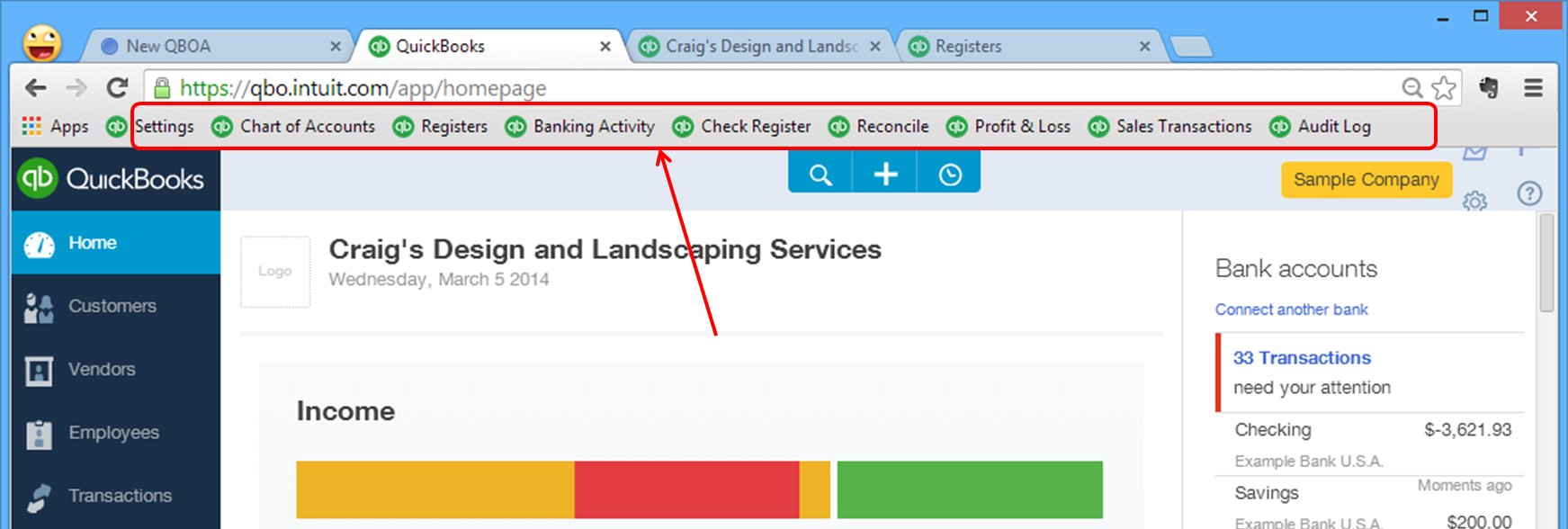
Keyboard shortcuts can be a time saver when you are working in QuickBooks so I’m happy to share keyboard shortcuts for QuickBooks Online (QBO). Plus, you can use One Click Trick in QuickBooks Online to create your own ‘icon bar’ to access things you use most frequently with just one click. The keyboard shortcuts will work in Chrome or Firefox and not in Internet Explorer.
YouTube video on the topic. http://bit.ly/QBOTips
Keyboard Shortcuts for QuickBooks Online
In Chrome or Firefox:
|
Ctrl + Alt + I |
Invoice |
|
Ctrl + Alt + W |
Write Checks |
|
Ctrl + Alt + X |
eXpense |
|
Ctrl + Alt + R |
Receive payment |
|
Ctrl + Alt + E |
Estimate |
|
Ctrl + Alt + L |
Lists |
|
Ctrl + Alt + A |
Accounts |
|
Ctrl + Alt + C |
Customers |
|
Ctrl + Alt + V |
Vendors |
|
Ctrl + Alt + F |
Find transactions |
|
Ctrl + Alt + H |
Help |
Date Shortcuts:
|
Today |
T |
|
YeaR |
Y = Beginning of the year R = End of the year |
|
MontH |
M= Beginning of the month H = End of the month |
|
WeeK |
W= Beginning of the week K= End of the week |
|
+ or – |
Forward or back quickly |
Zoom Display (make it larger or smaller): Ctrl+ or Ctrl- (plus or minus or hold Control and scroll up or down with your mouse to zoom in or out)
One Click Trick
You can create your own one click “icon bar” in QuickBooks Online for the things that you use most frequently. http://bit.ly/QBOTips
Using this one click trick will help save you lots of time navigating in QuickBooks Online. Best of all, if you have more than one company, it will work in all the QBO companies. However, for an account register (like the check register), the account numbers should be the same in each company.